GeForce NOW allows you to connect your Steam account to help you find supported games you own.
Note: Your Steam Profile must be configured to have Game details and playtime public for each sync to work On the Steam website or app, go to “View my profile” > “Edit Profile” > “Privacy Settings”. If you elect not to do this, game library sync will not work.
Your Steam profile will need to have these settings set when syncing.
- My profile: Public
- Game details: Public
- [ ] Always keep my total playtime private even if users can see my game details:
- UNCHECKED

To get started, go to the GeForce NOW app > Settings > Connections and click the CONNECT button which starts the process to log in to your Steam account.

A web browser will launch, and you will connect to Steam followed by a prompt to “Sign into www.nvidia.com using your Steam account.”.
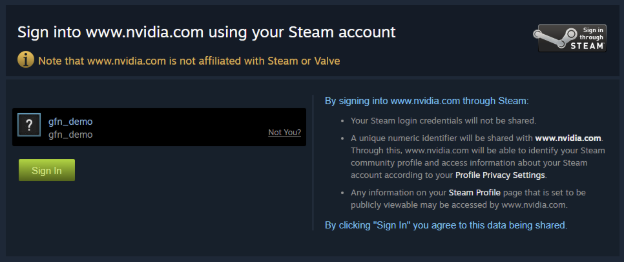
After you have connected your Steam account, go back to the GeForce NOW app to confirm. In the screenshot below, this account has 144 owned games which are supported on GeForce NOW.

Additional Notes:
- Free-to-Play or Demo games that have never been played before will not sync. Prior to launching these games, you will need to manually add these games to your library by pressing the button MARK AS OWNED > NOT NOW > YES, CONTINUE in order to play them on GeForce NOW.
- Games that are marked Private in your Steam library will not sync.
- Synced games will be added to your My Library in the GeForce NOW app
- Each time you buy or redeem a new Steam game you will need to resync your Steam account to add the new games. You can press the RESYNC button in settings or complete the resync process when launching a game for the first time.
- If you wish to disable Steam account game library sync, simply press the DISCONNECT button.